 Procell Repair
Help center › Inventory
Inventory
Add a product to inventory
Scan a SKU and the system fills in the rest from the parts catalog — brand, model, type and cost. Here's the fastest way in.
-
Open Add item
Go to Inventory and tap + Add item.
-
Scan or type the SKU
Scan the distributor's SKU (or type it). The system finds it in the live catalog and auto-fills the brand, model, type, image and cost for you.
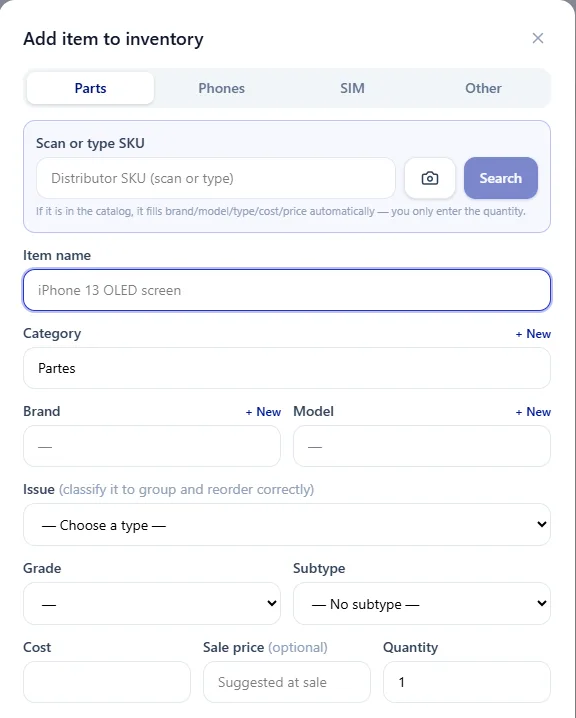
Scan the SKU and the fields fill themselves. No SKU? Fill brand, model and problem by hand — the Model box is searchable, just type to filter. -
Pick the category
Choose what it is: Part, Accessory, Phone (tracked by IMEI) or SIM (by ICCID).
-
Set cost and quantity
Parts store the cost — the system suggests the sale price from your markup. Enter how many units you're adding to this store.
-
Save
Save, and the product is in stock. It'll show up when you pick parts for a matching repair.
Adding a lot at once? Use Batch to add several by selection, or Receive purchase to load a whole distributor order.
Try it in your own shop
Start free
Procell POS runs your repairs, sales, inventory and customer portal. Free plan, no card — up to 15 transactions a month.